How to use the app
From first run to export — in 5 minutes. See pricing
1. Install and open
Download the app from your order page or your account page and run the file. There's nothing to install — it's a single program.
Windows may show "Windows protected your PC" for new apps. Click More info → Run anyway.
2. Activate your license
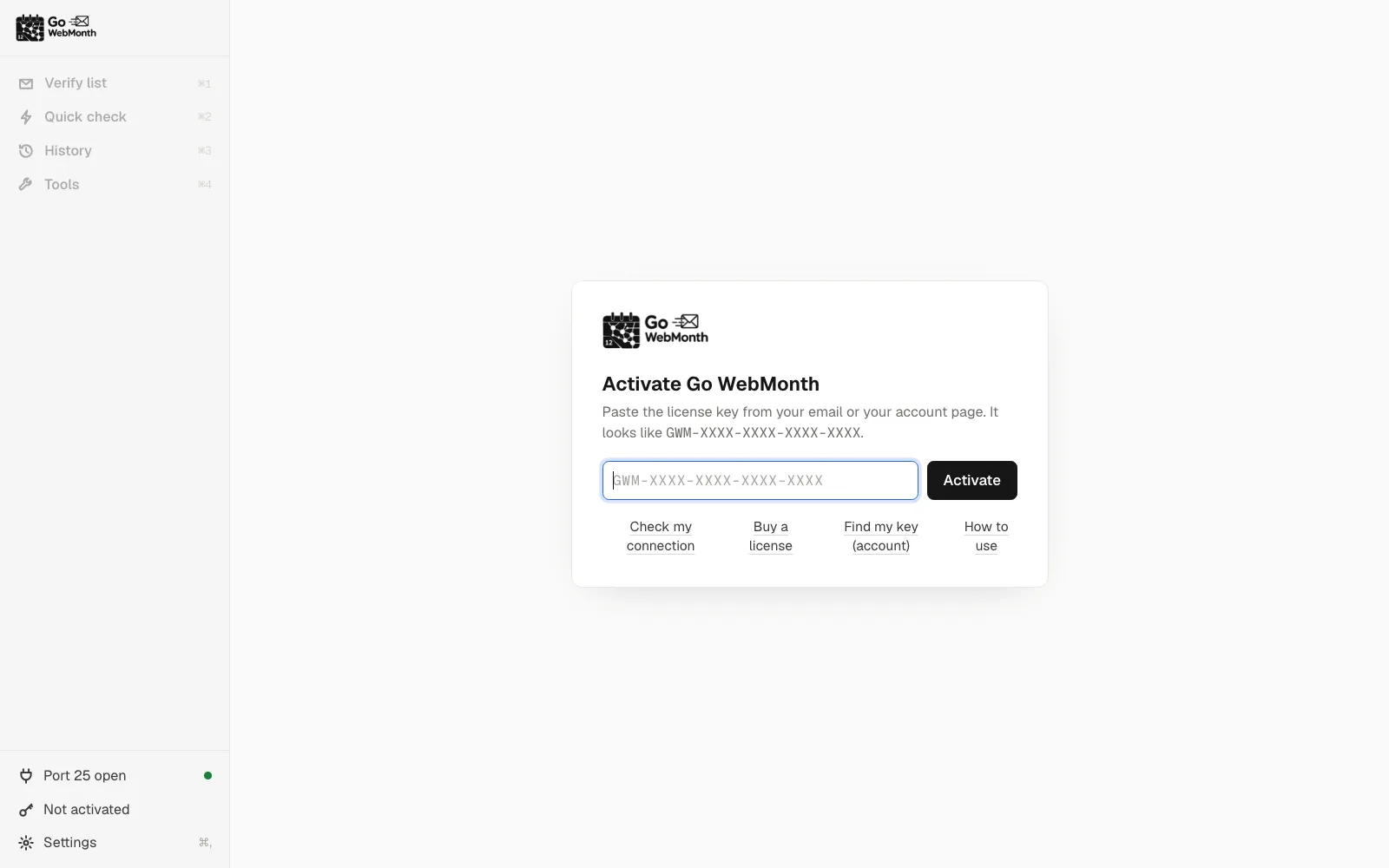
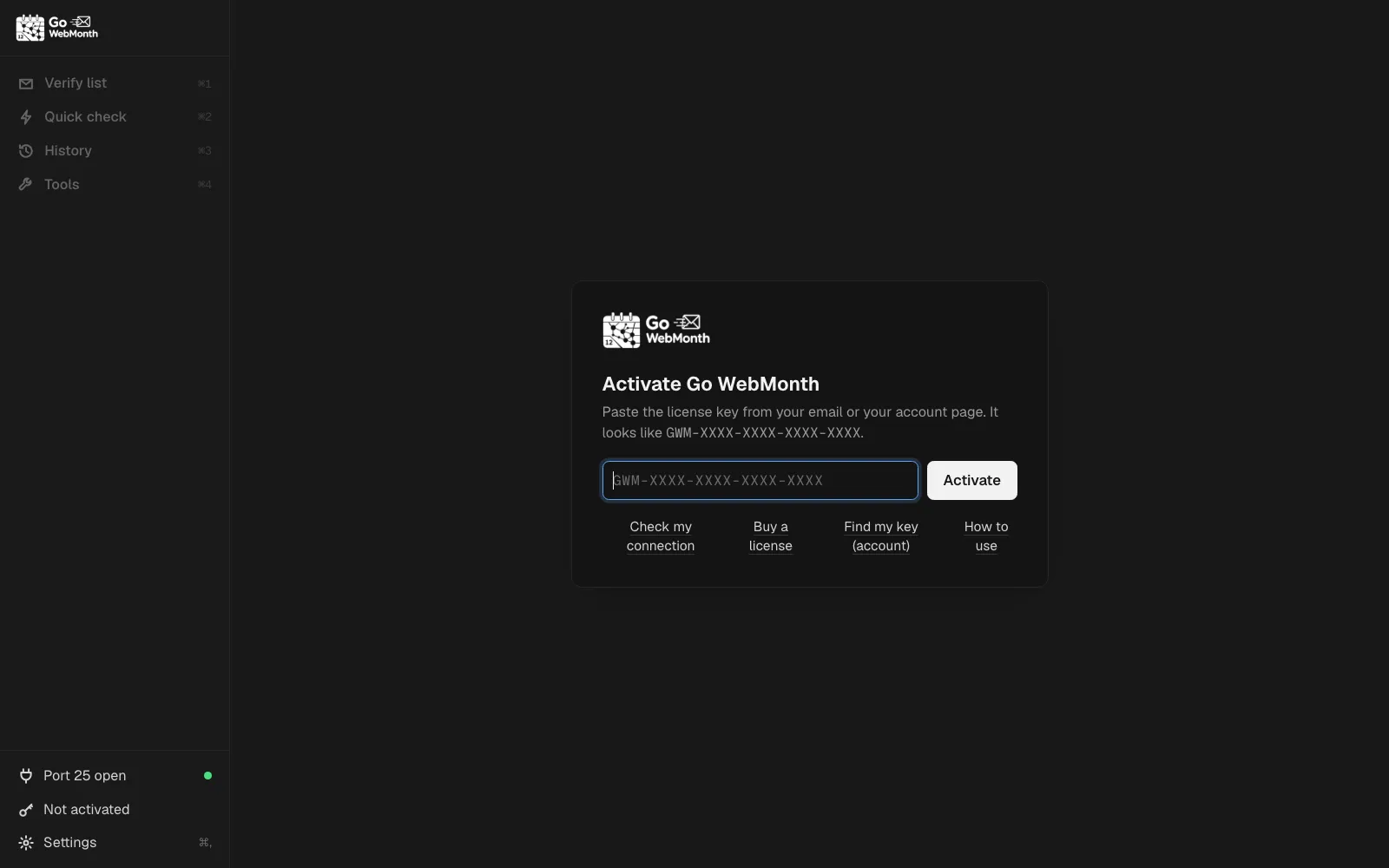
Paste the license key from your email (GWM-XXXX-XXXX-XXXX-XXXX) and press Activate. The license is tied to this PC.
Before buying or activating you can press Check connection to make sure port 25 and DNS work on your internet.
3. Check your connection
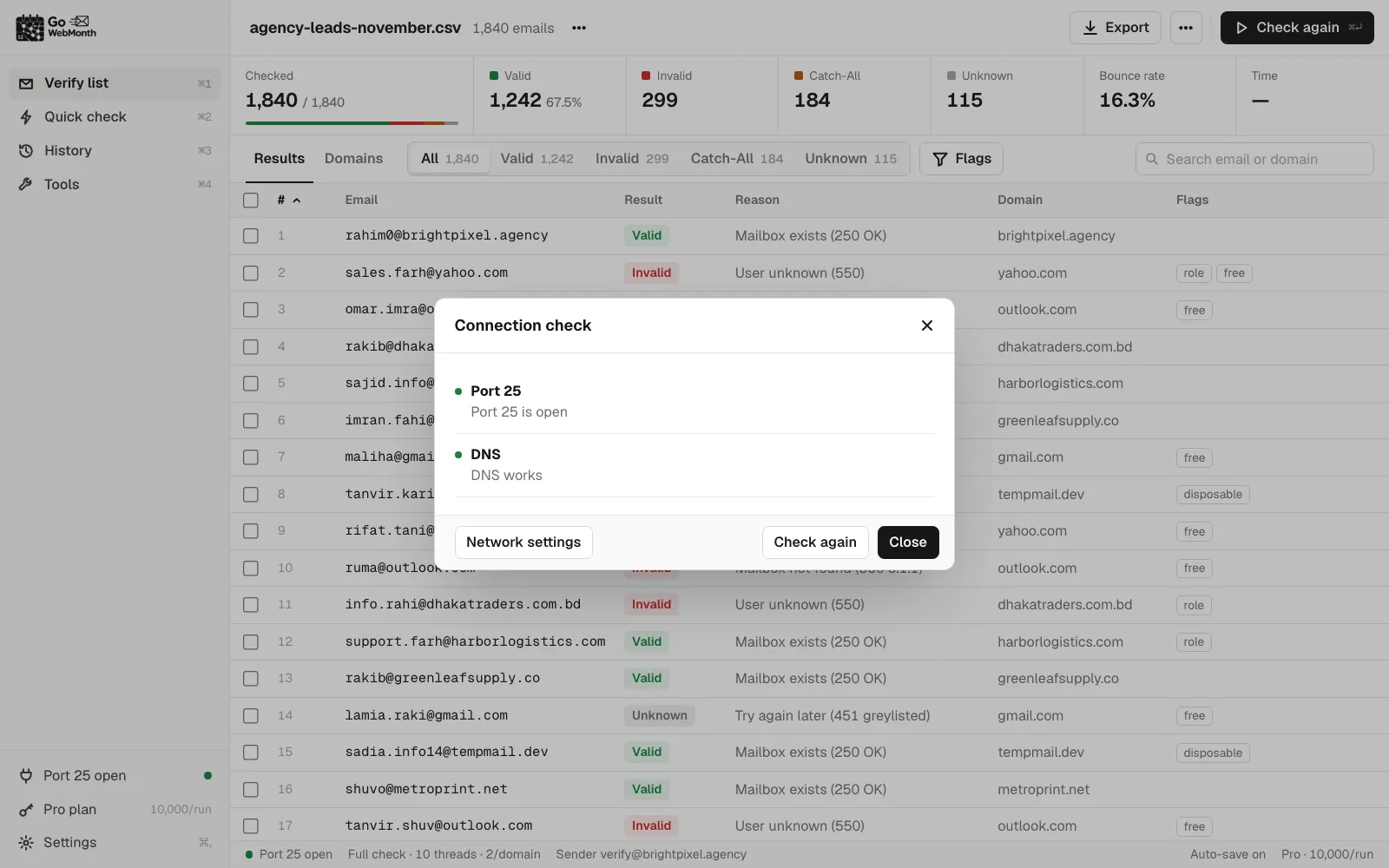
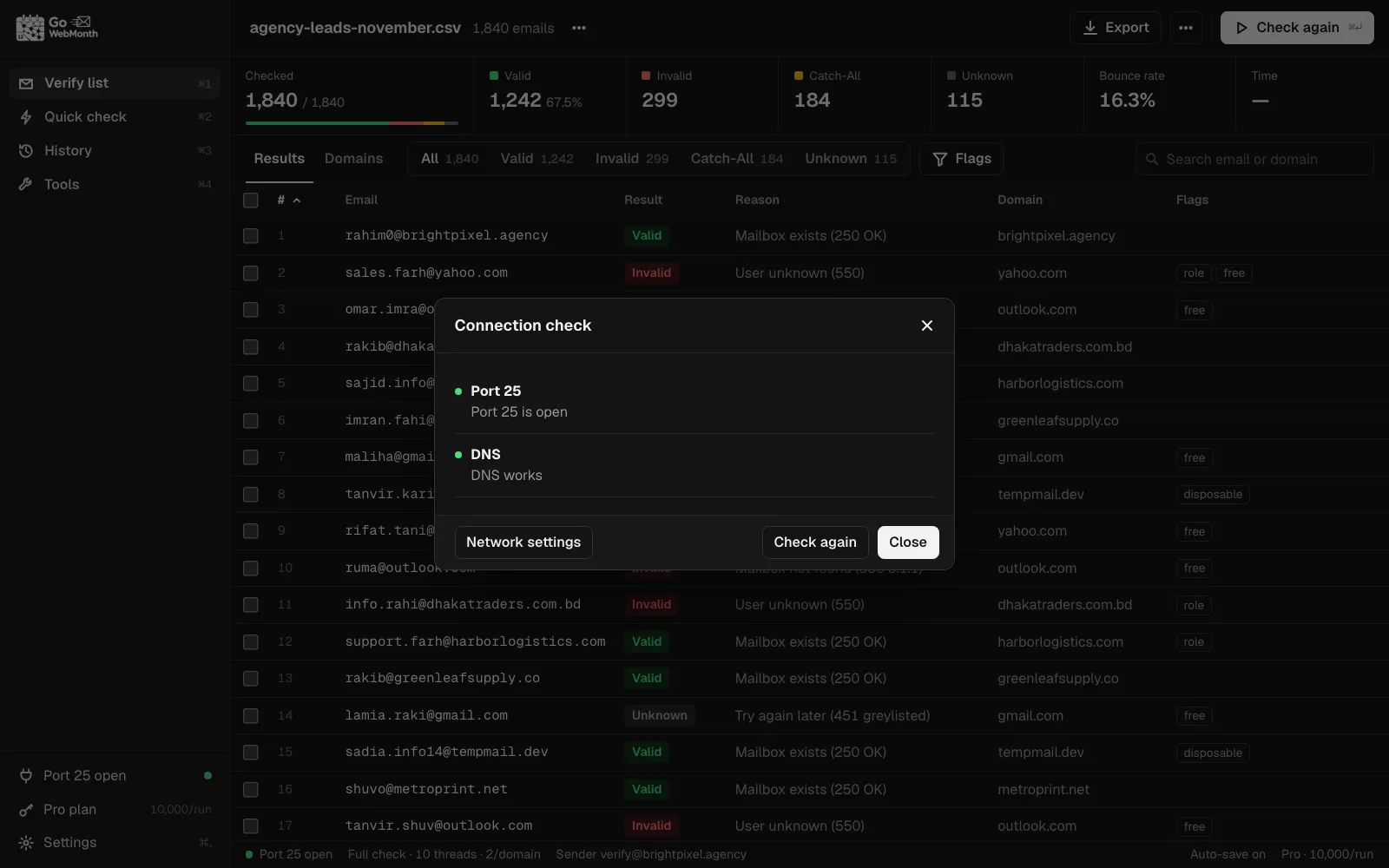
Mailbox checks need port 25. Most broadband connections have it open; some mobile data and office networks block it. The app checks this for you before each run.
Test-NetConnection gmail-smtp-in.l.google.com -Port 25
4. Open a list and start
Press Open list (Ctrl+O) and pick a CSV or TXT file, or paste addresses (Ctrl+Shift+V). The email column is found automatically and duplicates are removed.
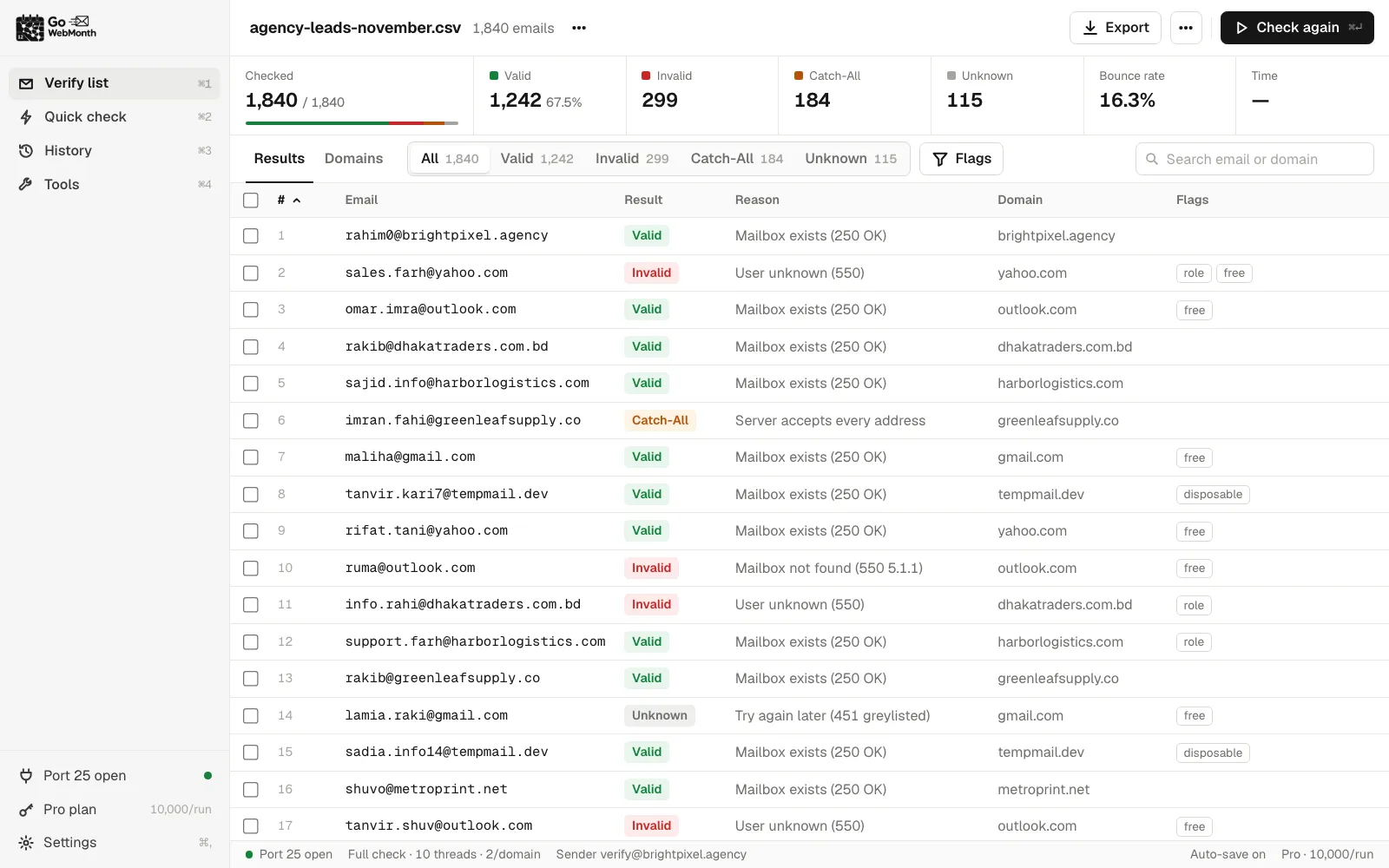
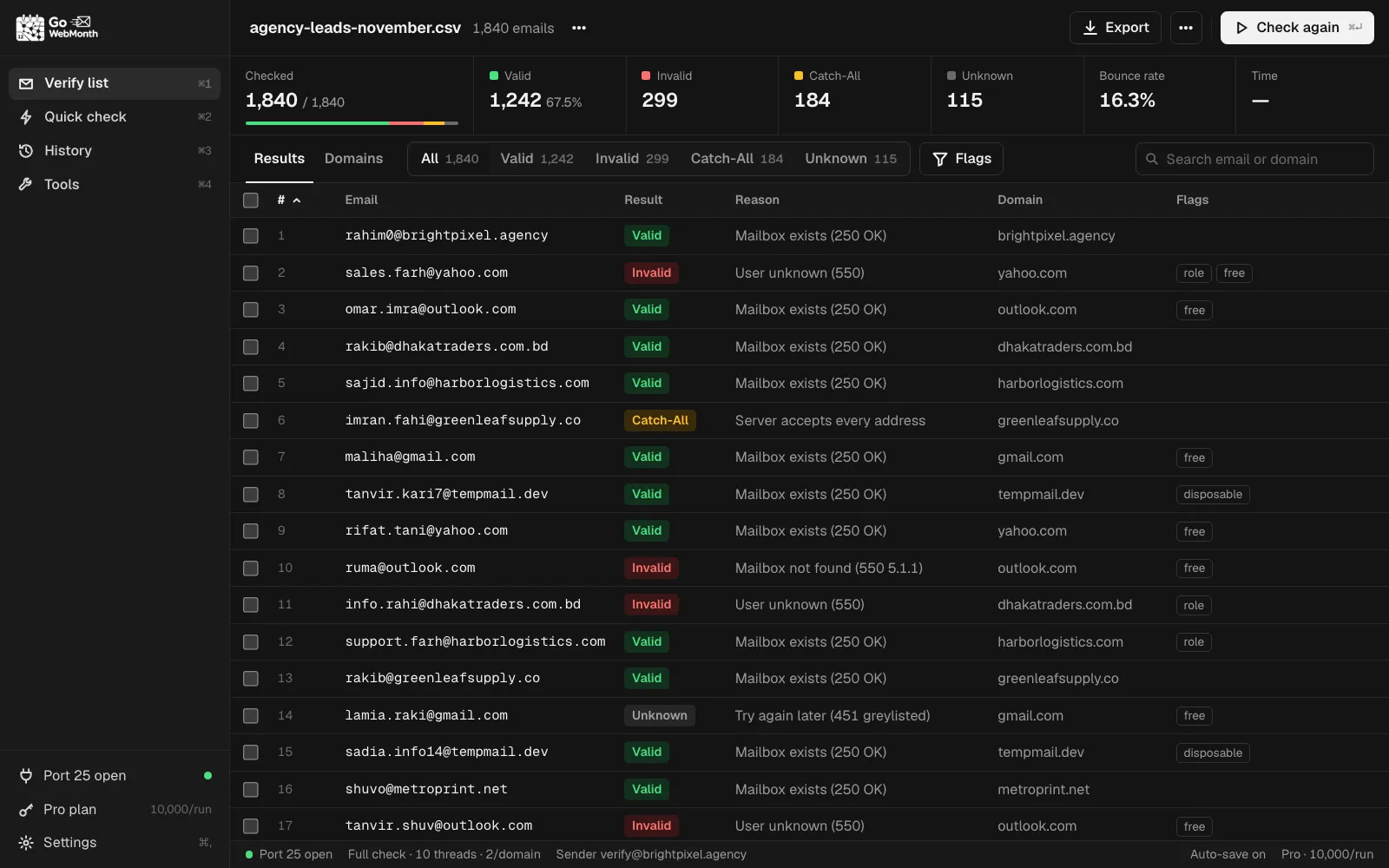
Press Start (Ctrl+Enter). You can Pause (Space) or Stop at any time. Results appear live; filter by status, search, and sort any column.
- Valid — the mailbox exists.
- Invalid — no such mailbox or domain.
- Catch-all — the server accepts every address, so it can't be confirmed.
- Unknown — the server didn't answer or blocked the check. Use Re-check unknown later.
5. Export a clean list
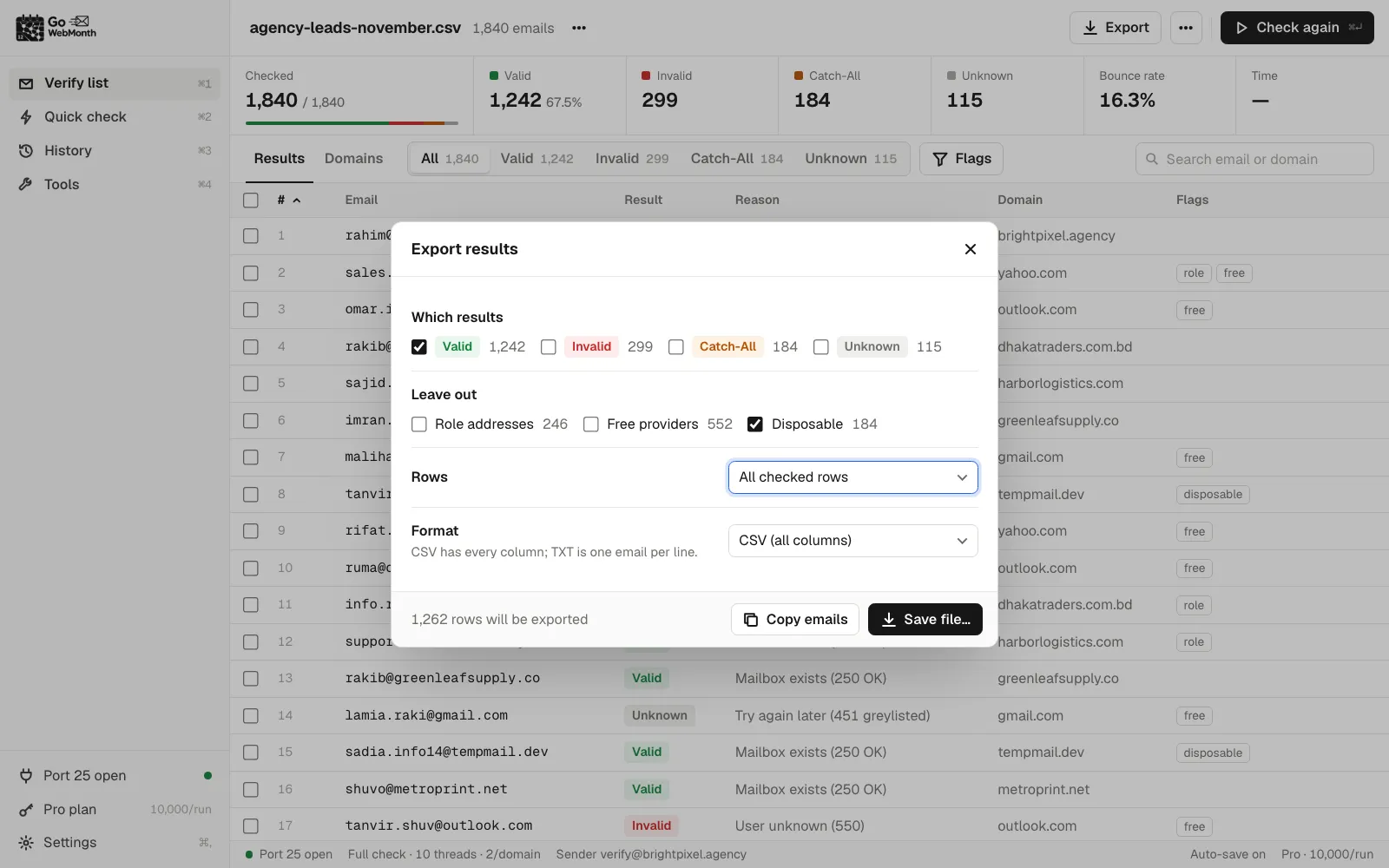
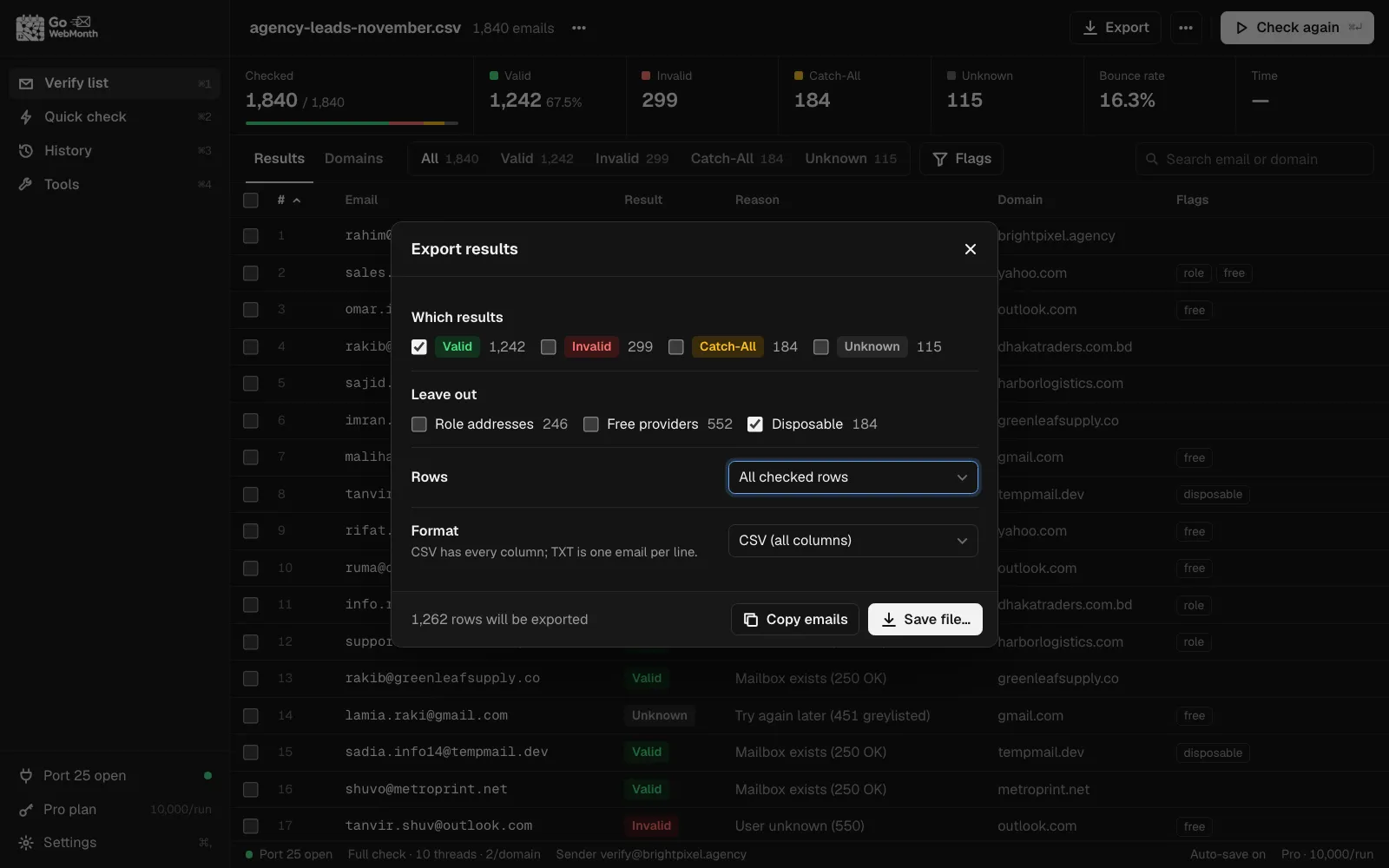
Press Export. Choose which results to keep (for example Valid only, or Valid + Catch-all), whether to leave out role, free-provider or disposable addresses, and save as CSV (all columns) or TXT (emails only).
6. Settings
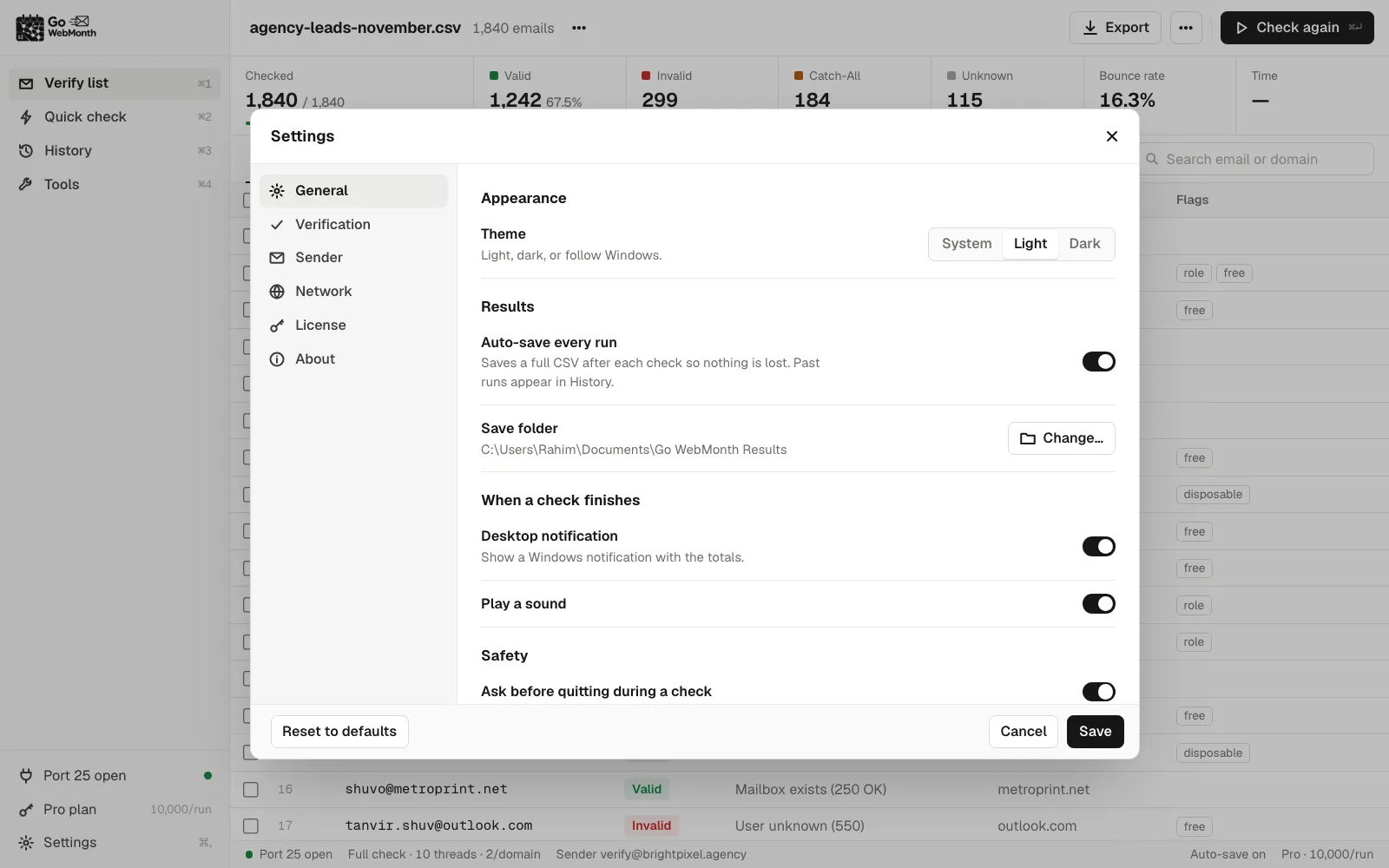
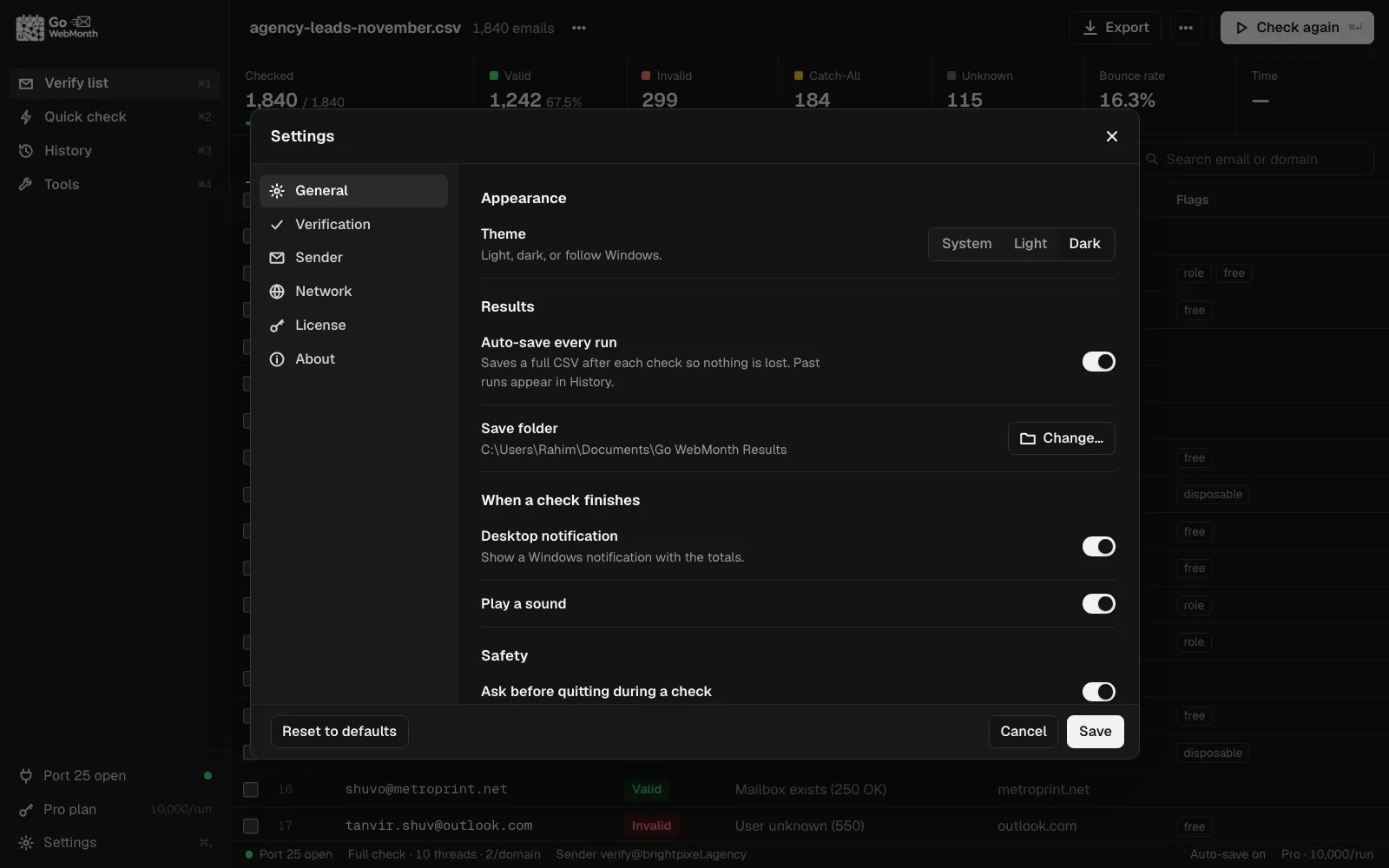
Settings (Ctrl+,) has General, Verification, Sender, Network, License and About tabs.
- Theme: Light, Dark or follow Windows.
- Threads and per-domain limits: higher is faster, but too high can make servers refuse checks. The defaults are safe.
- Sender address and HELO domain: using a real domain you own gives more answers from strict servers.
- DNS servers: set 1.1.1.1 or 8.8.8.8 if your internet's DNS is unreliable.
7. Move to another PC or upgrade
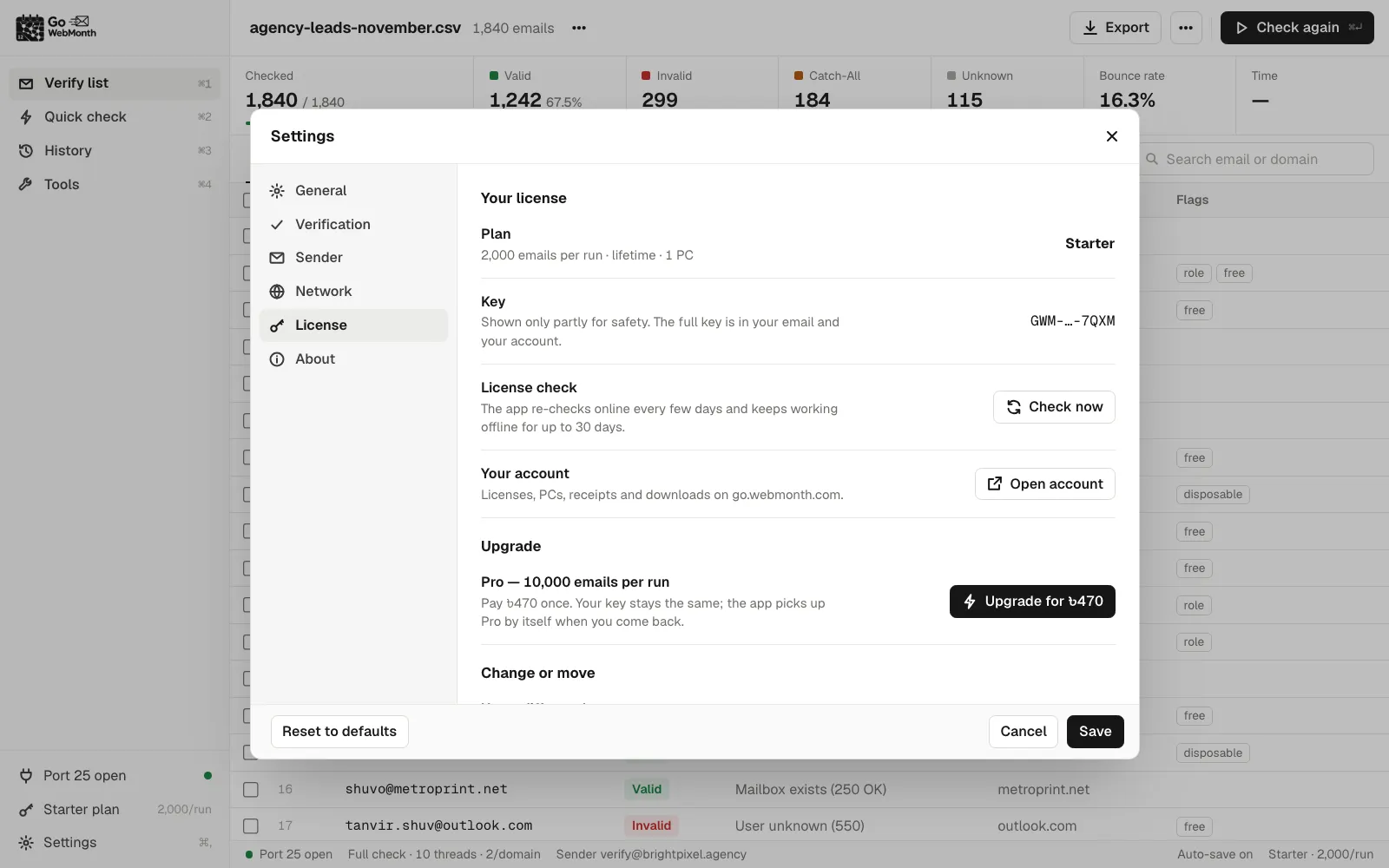
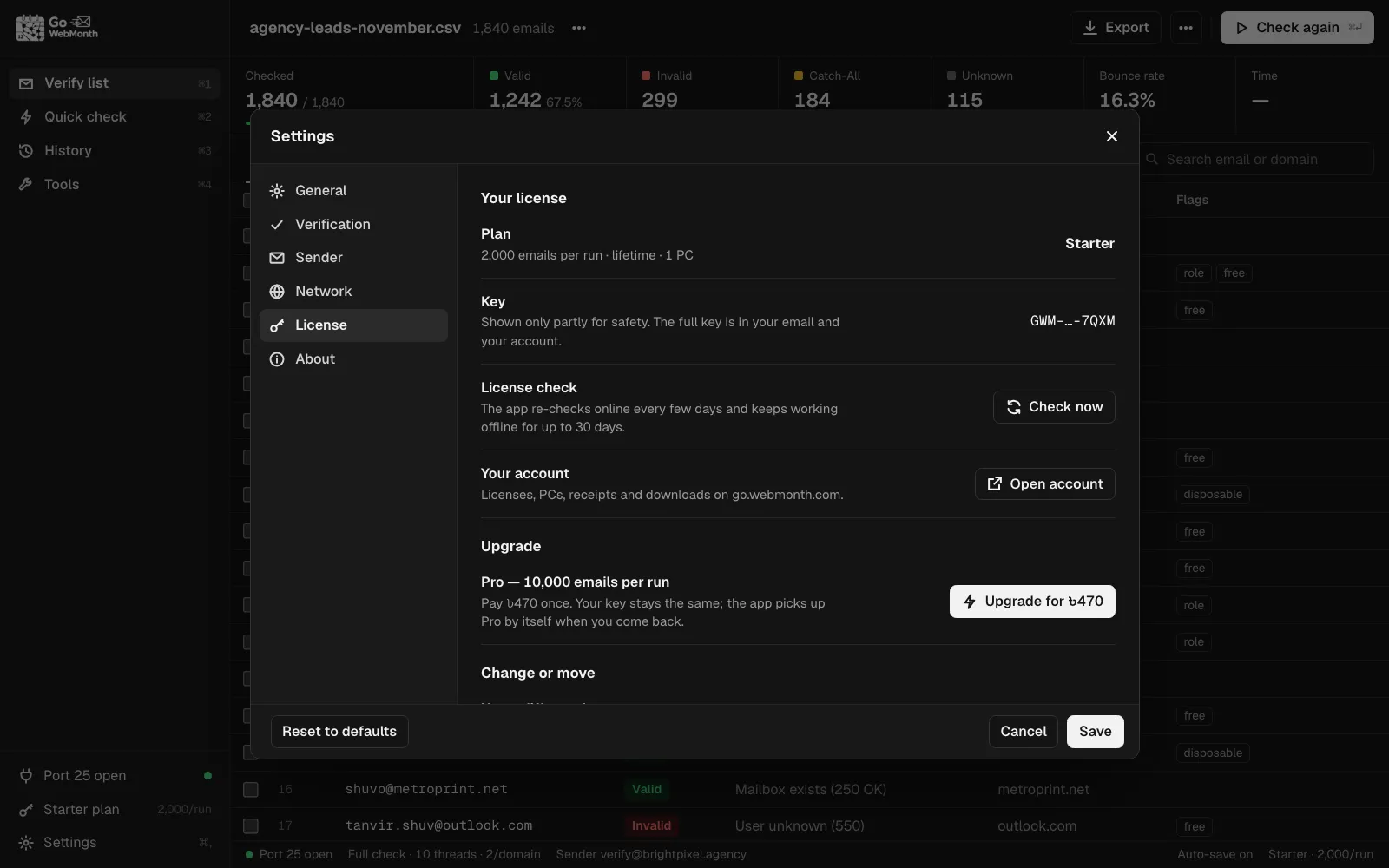
To move your license: Settings → License → Deactivate on the old PC, then activate on the new one. Lost the old PC? Sign in at go.webmonth.com/account and press Remove PC. You can move a license up to 3 times a month.
To change the key on this PC, use Settings → License → Change key.
Starter users can upgrade to Pro for ৳470 from the app (Upgrade to Pro) or from the account page. The key stays the same — after paying, press Check now.
8. Problems?
Many Unknown results from big providers usually means your connection is being refused. Set a sender address and HELO domain you own, lower Threads, or try another connection.
Still stuck? Email gosupport@webmonth.com with your order number. Support is by email for both plans.